<?xml version="1.0" encoding="utf-8"?>
<feed xmlns="http://www.w3.org/2005/Atom">
  <title>CureDew</title>
  
  <subtitle>CureDew个人博客</subtitle>
  <link href="http://curedew.github.io/atom.xml" rel="self"/>
  
  <link href="http://curedew.github.io/"/>
  <updated>2022-02-26T13:30:37.297Z</updated>
  <id>http://curedew.github.io/</id>
  
  <author>
    <name>CureDew</name>
    
  </author>
  
  <generator uri="https://hexo.io/">Hexo</generator>
  
  <entry>
    <title>Hello World-CureDew</title>
    <link href="http://curedew.github.io/2022/01/23/hello-world/"/>
    <id>http://curedew.github.io/2022/01/23/hello-world/</id>
    <published>2022-01-23T04:52:18.408Z</published>
    <updated>2022-02-26T13:30:37.297Z</updated>
    
    <content type="html"><![CDATA[<link rel="stylesheet" class="aplayer-secondary-style-marker" href="\assets\css\APlayer.min.css"><script src="\assets\js\APlayer.min.js" class="aplayer-secondary-script-marker"></script><link rel="stylesheet" type="text/css" href="https://cdn.jsdelivr.net/hint.css/2.4.1/hint.min.css"><div class="tip sync"><p>日出与日落，不一定代表时间的交替，喧嚣与沉静，描绘的未必是心境，跌倒和跃起，说不定仅仅是一种经历，潮起与潮落，谁说只能看到前赴后继，成长与放下，似乎就是一个选择，掌声与孤独，也许只是一种形式，探索与观望，可能面对的不止是这个世界，无所谓，我就是我<sup id="fnref:1"><a href="#fn:1" rel="footnote"><span class="hint--top hint--error hint--medium hint--rounded hint--bounce" aria-label="汤辉摄影师：#老汤煲汤# 语录：微博">[1]</span></a></sup></p></div><div class="note orange icon flat"><i class="note-icon fas fa-battery-half"></i><p><strong>去经历，去后悔，去做你想做的，选你所爱的，勇敢点，大胆点，不要为了别人眼里的正确而活着。</strong></p></div><div class="fj-gallery"><p><img src="https://inews.gtimg.com/newsapp_ls/0/14508866798/0.jpg" alt=""><br><img src="https://inews.gtimg.com/newsapp_ls/0/14508875622/0.jpg" alt=""><br><img src="https://inews.gtimg.com/newsapp_ls/0/14508867168/0.jpg" alt=""><br><img src="https://inews.gtimg.com/newsapp_ls/0/14508867527/0.jpg" alt=""><br><img src="https://inews.gtimg.com/newsapp_ls/0/14508873662/0.jpg" alt=""><br><img src="https://inews.gtimg.com/newsapp_ls/0/14508879073/0.jpg" alt=""></p>          </div><div class="tip home"><p><strong>余幼家贫，仍不知上进，蹉跎岁月后方明知识可贵。奈何花无重开日，人无再少年，回想过往，悔恨不已，不免几分自怜，为自己浪费的时间和错过的机会而懊悔不已。现才恍悟，生活不会给时间和机会，让你解释你的遭遇和痛苦，唯有坚持努力，破釜沉舟才能看见曙光。<br>希望一切还来得及… 也希望不要再错过…</strong></p></div><div id="footnotes"><hr><div id="footnotelist"><ol style="list-style: none; padding-left: 0; margin-left: 40px"><li id="fn:1"><span style="display: inline-block; vertical-align: top; padding-right: 10px; margin-left: -40px">1.</span><span style="display: inline-block; vertical-align: top; margin-left: 10px;">汤辉摄影师：#老汤煲汤# 语录：微博<a href="#fnref:1" rev="footnote"> ↩</a></span></li></ol></div></div>]]></content>


    <summary type="html">&lt;link rel=&quot;stylesheet&quot; class=&quot;aplayer-secondary-style-marker&quot; href=&quot;\assets\css\APlayer.min.css&quot;&gt;&lt;script src=&quot;\assets\js\APlayer.min.js&quot; cla</summary>


    <category term="Hello" scheme="http://curedew.github.io/categories/Hello/"/>
    
    
  </entry>
  
  <entry>
    <title>认识Mackdown</title>
    <link href="http://curedew.github.io/2021/12/26/e%C2%AE%E2%80%9C%E8%AE%A4%E8%AF%86Mackdown/"/>
    <id>http://curedew.github.io/2021/12/26/e%C2%AE%E2%80%9C%E8%AE%A4%E8%AF%86Mackdown/</id>
    <published>2021-12-26T14:48:29.000Z</published>
    <updated>2022-02-26T13:21:09.081Z</updated>
    
    <content type="html"><![CDATA[<link rel="stylesheet" class="aplayer-secondary-style-marker" href="\assets\css\APlayer.min.css"><script src="\assets\js\APlayer.min.js" class="aplayer-secondary-script-marker"></script><link rel="stylesheet" type="text/css" href="https://cdn.jsdelivr.net/hint.css/2.4.1/hint.min.css"><h1 id="认识Mackdown"><a href="#认识Mackdown" class="headerlink" title="认识Mackdown"></a>认识Mackdown</h1><div class="note blue icon simple"><i class="note-icon fas fa-bullhorn"></i><p>Markdown 是一种轻量级的「标记语言」，它的优点很多，目前也被越来越多的写作爱好者，撰稿者广泛使用。看到这里请不要被「标记」、「语言」所迷惑，Markdown 的语法十分简单。常用的标记符号也不超过十个，这种相对于更为复杂的HTML 标记语言来说，Markdown 可谓是十分轻量的，学习成本也不需要太多，且一旦熟悉这种语法规则，会有一劳永逸的效果。</p></div><p><strong>与 word 不同，Markdown 只有输入文本字符，没有复杂的格式控制，Markdown 仅通过数个文本标记符来实现简单的格式控制，让写作回归写作。</strong></p><h1 id="工欲善其事-必先利其器"><a href="#工欲善其事-必先利其器" class="headerlink" title="工欲善其事,必先利其器"></a>工欲善其事,必先利其器</h1><p>Mackdown编辑器有很多，你可以使用VsCode，Sublime，Joplin等等，如果你想实现云笔记的话OneNote,有道云，印象，幕布，wolai云笔记等，甚至在线编辑器也不是不可以（CSDN的在线编辑器也是很不错的），不过我习惯使用Typora编辑器。</p><div class="tabs" id="test4"><ul class="nav-tabs"><li class="tab active"><button type="button" data-href="#test4-1"><font color="#FB6B8A" >Typora简介</font></button></li><li class="tab"><button type="button" data-href="#test4-2"><font color="#548ca8" >Typora官网</font></button></li></ul><div class="tab-contents"><div class="tab-item-content active" id="test4-1"><p><strong>Typora是一种用于便笺和文档的简单且可配置的编辑器。对于在本地做笔记使用markdown很方便快捷，一个好的markdown编辑器很重要，使用typora最大的特点是编辑有预览页面是同一个，而且对图片表格之类的操作很简单。</strong></p><button type="button" class="tab-to-top" aria-label="scroll to top"><i class="fas fa-arrow-up"></i></button></div><div class="tab-item-content" id="test4-2"><div class="tag link"><a class="link-card" title="Typora官网" href="https://www.typora.net/"><div class="left"><img src="https://inews.gtimg.com/newsapp_ls/0/14563849436/0.jpg"/></div><div class="right"><p class="text">Typora官网</p><p class="url">https://www.typora.net/</p></div></a></div><button type="button" class="tab-to-top" aria-label="scroll to top"><i class="fas fa-arrow-up"></i></button></div></div></div><blockquote><font color="#FB6B8A" >ps:不要做工具的奴隶，回归记笔记的本质才是最重要的，工具顺手方便就好。</font></blockquote><h1 id="Mackdown基础语法"><a href="#Mackdown基础语法" class="headerlink" title="Mackdown基础语法"></a>Mackdown基础语法</h1><div class="note warning simple"><p>使用Mackdown，并不意味着你不可以使用HTML语法，在使用时，也可以将HTML标签添加到Mackdown文件。</p></div><div class="tag link"><a class="link-card" title="Mackdown中文文档" href="https://markdown.p2hp.com/"><div class="left"><img src="https://inews.gtimg.com/newsapp_ls/0/14563849437/0.jpg"/></div><div class="right"><p class="text">Mackdown中文文档</p><p class="url">https://markdown.p2hp.com/</p></div></a></div><h2 id="标题"><a href="#标题" class="headerlink" title="标题"></a>标题</h2><div class="table-container"><table><thead><tr><th style="text-align:center">Mackdown语法</th><th style="text-align:center">HTML</th><th style="text-align:center">渲染输出结果</th></tr></thead><tbody><tr><td style="text-align:center"># 一级标题</td><td style="text-align:center"><code>&lt;h1&gt;一级标题&lt;/h1&gt;</code></td><td style="text-align:center"><font size="10">一级标题</font></td></tr><tr><td style="text-align:center">## 二级标题</td><td style="text-align:center"><code>&lt;h2&gt;二级标题&lt;/h2&gt;</code></td><td style="text-align:center"><font size="6">二级标题</font></td></tr><tr><td style="text-align:center">### 三级标题</td><td style="text-align:center"><code>&lt;h3&gt;三级标题&lt;/h2&gt;</code></td><td style="text-align:center"><font size="5">三级标题</font></td></tr><tr><td style="text-align:center">#### 四级标题</td><td style="text-align:center"><code>&lt;h4&gt;四级标题&lt;/h4&gt;</code></td><td style="text-align:center"><font size="3">四级标题</font></td></tr></tbody></table></div><p>PS：’#‘ 号后边要有一个空格才是显示，一共有6级标题，在标题下方，使用 ‘=’ 和 ‘-’ 可标记一级和二级标题<br><figure class="highlight markdown"><table><tr><td class="gutter"><pre><span class="line">1</span><br><span class="line">2</span><br><span class="line">3</span><br><span class="line">4</span><br><span class="line">5</span><br></pre></td><td class="code"><pre><span class="line"><span class="section">一级标题</span></span><br><span class="line"><span class="section">===</span></span><br><span class="line"> </span><br><span class="line"><span class="section">二级标题</span></span><br><span class="line"><span class="section">---</span></span><br></pre></td></tr></table></figure></p><h2 id="字体（着重）"><a href="#字体（着重）" class="headerlink" title="字体（着重）"></a>字体（着重）</h2><div class="table-container"><table><thead><tr><th style="text-align:center">属性</th><th style="text-align:center">Mackdown语法</th><th style="text-align:center">HTML</th><th style="text-align:center">渲染输出结果</th></tr></thead><tbody><tr><td style="text-align:center">粗体</td><td style="text-align:center">**粗体**</td><td style="text-align:center"><code>&lt;b&gt;粗体&lt;/b&gt;或者 &lt;strong&gt;</code></td><td style="text-align:center"><strong>粗体</strong></td></tr><tr><td style="text-align:center">斜体</td><td style="text-align:center">*斜体*/_斜体_</td><td style="text-align:center"><code>&lt;em&gt;斜体&lt;/em&gt;</code></td><td style="text-align:center"><em>斜体</em></td></tr><tr><td style="text-align:center">粗斜体</td><td style="text-align:center">***粗斜体***</td><td style="text-align:center"><code>&lt;strong&gt;&lt;em&gt;粗斜体&lt;/em&gt;&lt;/strong&gt;</code></td><td style="text-align:center"><strong><em>粗斜体</em></strong></td></tr><tr><td style="text-align:center">删除线</td><td style="text-align:center">~~删除线~~</td><td style="text-align:center"><code>&lt;s&gt;删除线&lt;/s&gt;</code></td><td style="text-align:center"><del>删除线</del></td></tr></tbody></table></div><h2 id="块引用"><a href="#块引用" class="headerlink" title="块引用"></a>块引用</h2><p>块引用<code>blockquote</code> ,使用‘ &gt; ’<br>渲染输出效果：</p><blockquote><p>块引用 blockquote</p></blockquote><p>块可以相互嵌套，在‘&gt;’ 后再加一个‘&gt;’ 即可实现</p><blockquote><p>块引用</p><blockquote><p>嵌套块引用</p></blockquote></blockquote><p>ps：块里其实也是可以使用其他Mackdown元素的</p><h2 id="清单（有序-无序）"><a href="#清单（有序-无序）" class="headerlink" title="清单（有序/无序）"></a>清单（有序/无序）</h2><p>Markdown 支持有序列表和无序列表。<br><strong>有序列表：</strong><br>创建有序列表，只需要添加  <code>数字+.</code>  就可以实现了<br><img src="https://inews.gtimg.com/newsapp_ls/0/14400164878/0.png" alt=""></p><p><strong>无序列表：</strong><br>无序列表使用星号、加号或是减号作为列表标记：<br><img src="https://inews.gtimg.com/newsapp_ls/0/14400157781/0.png" alt=""></p><p>ps: 符号与内容间需要添加一个空格才会正常显示</p><h2 id="代码-代码块"><a href="#代码-代码块" class="headerlink" title="代码/代码块"></a>代码/代码块</h2><p>要想将单词或者短语显示为代码，将代码放入 ‘ ’ 即可</p><div class="table-container"><table><thead><tr><th style="text-align:center">Mackdown语法</th><th style="text-align:center">HTML</th><th style="text-align:center">渲染输出结果</th></tr></thead><tbody><tr><td style="text-align:center">`HelloWord`</td><td style="text-align:center"><code>&lt;code&gt;HelloWord&lt;/code&gt;</code></td><td style="text-align:center"><code>HelloWord</code></td></tr></tbody></table></div><p><strong>代码块</strong><br>缩进式多行代码： 缩进 4 个空格或是 1 个制表符，一个代码区块会一直持续到没有缩进的那一行（或是文件结尾）。  </p><pre><code>#include &lt;stdio.h&gt;int main(void)&#123;printf(&quot;Hello world\n&quot;);&#125;</code></pre><p>用六个 <strong>`</strong> 包裹多行代码:<br>``` HelloWord CureDew HelloWord ``` </p><p>渲染结果<br><figure class="highlight html"><table><tr><td class="gutter"><pre><span class="line">1</span><br><span class="line">2</span><br></pre></td><td class="code"><pre><span class="line"><span class="tag">&lt;<span class="name">h1</span>&gt;</span>HelloWord<span class="tag">&lt;<span class="name">h1</span>&gt;</span></span><br><span class="line">    <span class="tag">&lt;<span class="name">p</span>&gt;</span>CureDew HelloWord<span class="tag">&lt;/<span class="name">p</span>&gt;</span></span><br></pre></td></tr></table></figure></p><h2 id="水平线"><a href="#水平线" class="headerlink" title="水平线"></a>水平线</h2><p>想要创建水平线，只需要在空的一行上输入三个星号*** 、扩折号---、下划线_ _ _,所有这三个的渲染输出看起来都相同的。</p><h2 id="链接"><a href="#链接" class="headerlink" title="链接"></a>链接</h2><div class="table-container"><table><thead><tr><th style="text-align:center">属性</th><th style="text-align:center">Mackdown</th><th style="text-align:center">渲染输出结果</th></tr></thead><tbody><tr><td style="text-align:center">文本链接</td><td style="text-align:center">点击此[CureDew](http://www.CureDew.com/)</td><td style="text-align:center">点击此<a href="http://www.CureDew.com/">CureDew</a></td></tr><tr><td style="text-align:center">图像链接</td><td style="text-align:center">![](http://mtw.so/5CAMdj)</td><td style="text-align:center"><img src="https://inews.gtimg.com/newsapp_ls/0/14356463736/0.png" style="zoom:10%;" /></td></tr><tr><td style="text-align:center">锚点链接</td><td style="text-align:center">[Mackdown基础语法](#Mackdown基础语法)</td><td style="text-align:center"><a href="#Mackdown基础语法">Mackdown基础语法</a></td></tr><tr><td style="text-align:center">自动链接</td><td style="text-align:center">https://www.curedew.com/</td><td style="text-align:center"><a href="https://www.curedew.com/">https://www.curedew.com/</a></td></tr></tbody></table></div><p>ps:其中图片链接<code>![](http://mtw.so/5CAMdj)</code>也可以写成HTMl语法<br><figure class="highlight html"><table><tr><td class="gutter"><pre><span class="line">1</span><br><span class="line">2</span><br></pre></td><td class="code"><pre><span class="line"><span class="tag">&lt;<span class="name">img</span> <span class="attr">src</span>=<span class="string">&quot;http://mtw.so/5CAMdj&quot;</span> <span class="attr">style</span>=<span class="string">&quot;zoom:10%;&quot;</span> /&gt;</span></span><br><span class="line"><span class="comment">&lt;!--(zoom：10%是缩放图片大小)--&gt;</span></span><br></pre></td></tr></table></figure></p><h2 id="注脚"><a href="#注脚" class="headerlink" title="注脚"></a>注脚</h2><p>在需要添加注脚的文字后加上脚注名字<sup><a href="#fn_注脚名字" id="reffn_注脚名字">注脚名字</a></sup>,称为加注。 然后在文本的任意位置(一般在最后)添加脚注，脚注前必须有对应的脚注名字。</p><p>使用 Markdown<sup id="fnref:1"><a href="#fn:1" rel="footnote"><span class="hint--top hint--error hint--medium hint--rounded hint--bounce" aria-label="Markdown是一种纯文本标记语言 ">[1]</span></a></sup>可以效率的书写文档, 直接转换成HTML<sup id="fnref:2"><a href="#fn:2" rel="footnote"><span class="hint--top hint--error hint--medium hint--rounded hint--bounce" aria-label="HyperText Markup Language 超文本标记语言">[2]</span></a></sup></p><p><strong>ps:Hexo添加脚注需要插件才能实现</strong>  <code>npm install hexo-reference --save</code></p><h2 id="表格"><a href="#表格" class="headerlink" title="表格"></a>表格</h2><p>Mackdown语法：<br><figure class="highlight markdown"><table><tr><td class="gutter"><pre><span class="line">1</span><br><span class="line">2</span><br><span class="line">3</span><br><span class="line">4</span><br></pre></td><td class="code"><pre><span class="line">| 标题1 | 标题2 |</span><br><span class="line">| ---- | ---- |</span><br><span class="line">| 内容1 | 内容2  |</span><br><span class="line">| 内容3 | 内容4  |</span><br></pre></td></tr></table></figure><br>渲染输出结果：</p><div class="table-container"><table><thead><tr><th>标题1</th><th>标题2</th></tr></thead><tbody><tr><td>内容1</td><td>内容2</td></tr><tr><td>内容3</td><td>内容4</td></tr></tbody></table></div><p>对齐方式：</p><figure class="highlight markdown"><table><tr><td class="gutter"><pre><span class="line">1</span><br><span class="line">2</span><br><span class="line">3</span><br><span class="line">4</span><br></pre></td><td class="code"><pre><span class="line"><span class="bullet">-</span> - - - 默认段落对齐方式</span><br><span class="line">: - - - - 左对齐</span><br><span class="line"><span class="bullet">-</span> - - - ：右对齐</span><br><span class="line">：- - - - ：居中对齐</span><br></pre></td></tr></table></figure><h2 id="任务清单"><a href="#任务清单" class="headerlink" title="任务清单"></a>任务清单</h2><p>任务清单可以创建带有复选框的项目列表，要创建任务清单的语法： <code>- [  ] 任务列表1</code> ，选中状态： <code>- [ x ] 任务列表2</code><br>渲染输出效果：<br><div class='checkbox'><input type="checkbox" />            <p>任务清单1</p>            </div><div class='checkbox checked'><input type="checkbox" checked="checked"/>            <p>任务清单2</p>            </div></p><h2 id="特殊字符"><a href="#特殊字符" class="headerlink" title="特殊字符"></a>特殊字符</h2><div class="table-container"><table><thead><tr><th style="text-align:center">特殊字符</th><th style="text-align:center">描述</th><th style="text-align:center">字符代码</th></tr></thead><tbody><tr><td style="text-align:center"></td><td style="text-align:center">空格符</td><td style="text-align:center"><code>&amp;nbsp</code></td></tr><tr><td style="text-align:center">&lt;</td><td style="text-align:center">小于号</td><td style="text-align:center"><code>&amp;lt</code></td></tr><tr><td style="text-align:center">&gt;</td><td style="text-align:center">大于号</td><td style="text-align:center"><code>&amp;gt</code></td></tr><tr><td style="text-align:center">&amp;</td><td style="text-align:center">和号</td><td style="text-align:center"><code>&amp;lt</code></td></tr><tr><td style="text-align:center">￥</td><td style="text-align:center">人民币</td><td style="text-align:center"><code>&amp;yen</code></td></tr><tr><td style="text-align:center">©</td><td style="text-align:center">版权</td><td style="text-align:center"><code>&amp;copy</code></td></tr><tr><td style="text-align:center">®</td><td style="text-align:center">注册商标</td><td style="text-align:center"><code>&amp;reg</code></td></tr><tr><td style="text-align:center">°C</td><td style="text-align:center">摄氏度</td><td style="text-align:center"><code>&amp;deg;C</code></td></tr><tr><td style="text-align:center">±</td><td style="text-align:center">正负号</td><td style="text-align:center"><code>&amp;plusmn</code></td></tr><tr><td style="text-align:center">×</td><td style="text-align:center">乘号</td><td style="text-align:center"><code>&amp;times</code></td></tr><tr><td style="text-align:center">÷</td><td style="text-align:center">除号</td><td style="text-align:center"><code>&amp;divide</code></td></tr><tr><td style="text-align:center">²</td><td style="text-align:center">平方（上标²）</td><td style="text-align:center"><code>&amp;sup2</code></td></tr><tr><td style="text-align:center">³</td><td style="text-align:center">立方（上标³）</td><td style="text-align:center"><code>&amp;sup3</code></td></tr></tbody></table></div><div id="footnotes"><hr><div id="footnotelist"><ol style="list-style: none; padding-left: 0; margin-left: 40px"><li id="fn:1"><span style="display: inline-block; vertical-align: top; padding-right: 10px; margin-left: -40px">1.</span><span style="display: inline-block; vertical-align: top; margin-left: 10px;">Markdown是一种纯文本标记语言<a href="#fnref:1" rev="footnote"> ↩</a></span></li><li id="fn:2"><span style="display: inline-block; vertical-align: top; padding-right: 10px; margin-left: -40px">2.</span><span style="display: inline-block; vertical-align: top; margin-left: 10px;">HyperText Markup Language 超文本标记语言<a href="#fnref:2" rev="footnote"> ↩</a></span></li></ol></div></div>]]></content>
    
    
    <summary type="html">Markdown 是一种轻量级的「标记语言」，它的优点很多，目前也被越来越多的写作爱好者，撰稿者广泛使用。</summary>


    <category term="笔记" scheme="http://curedew.github.io/categories/%E7%AC%94%E8%AE%B0/"/>
    
    
    <category term="Mackdown" scheme="http://curedew.github.io/tags/Mackdown/"/>
    
  </entry>
  
  <entry>
    <title>Hexo+Github搭建个人博客学习笔记</title>
    <link href="http://curedew.github.io/2021/12/05/Hexo+Github%E6%90%AD%E5%BB%BA%E4%B8%AA%E4%BA%BA%E5%8D%9A%E5%AE%A2/"/>
    <id>http://curedew.github.io/2021/12/05/Hexo+Github%E6%90%AD%E5%BB%BA%E4%B8%AA%E4%BA%BA%E5%8D%9A%E5%AE%A2/</id>
    <published>2021-12-05T14:40:48.000Z</published>
    <updated>2022-02-26T13:23:06.792Z</updated>
    
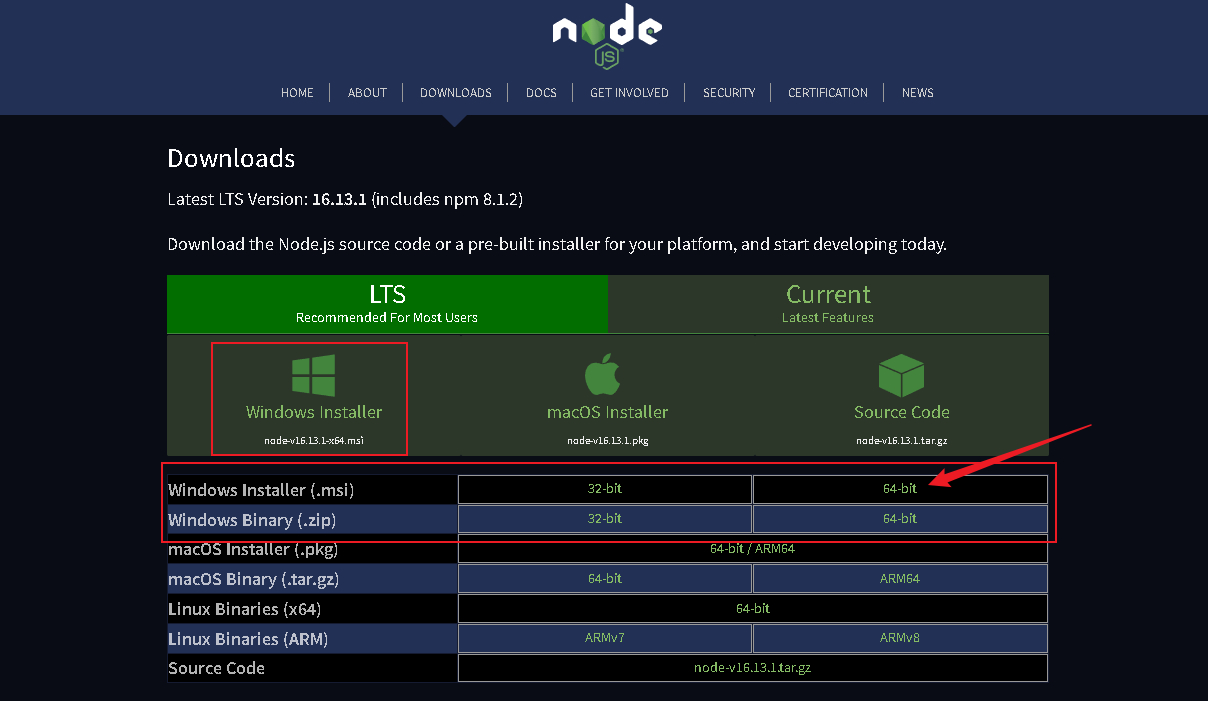
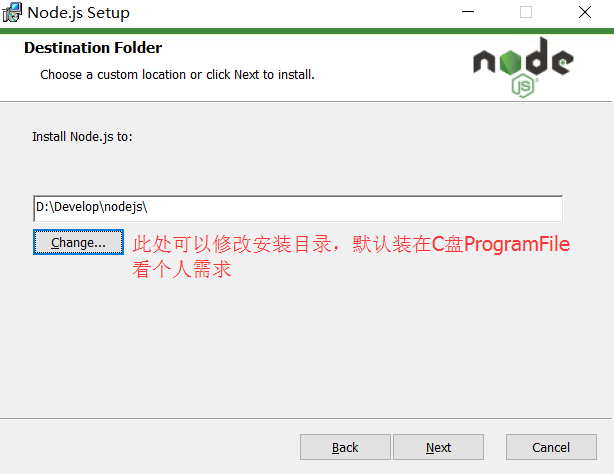
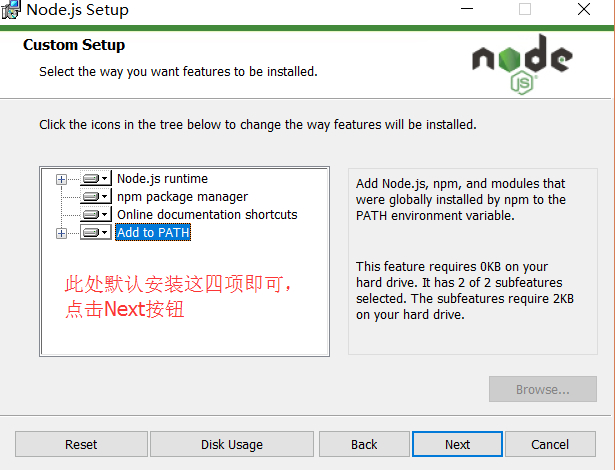
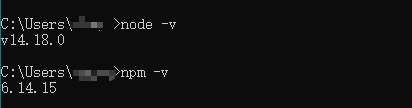
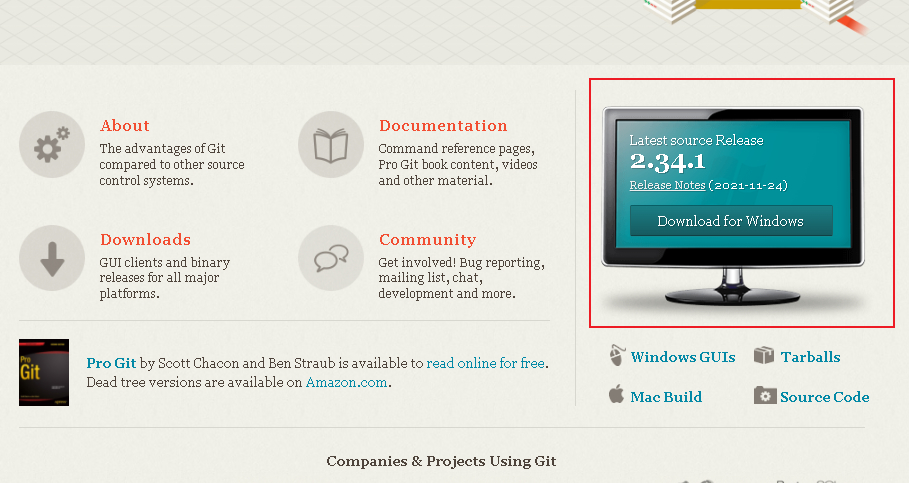
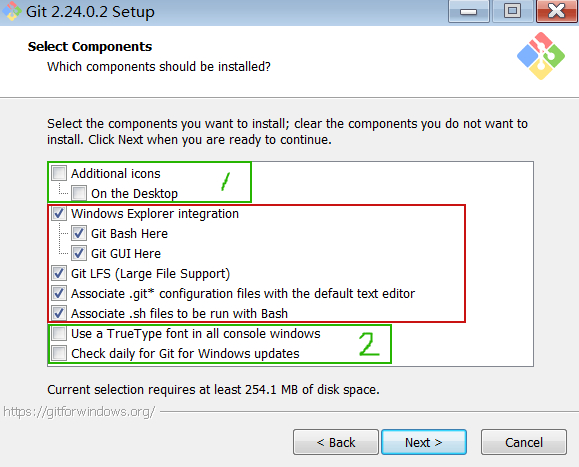
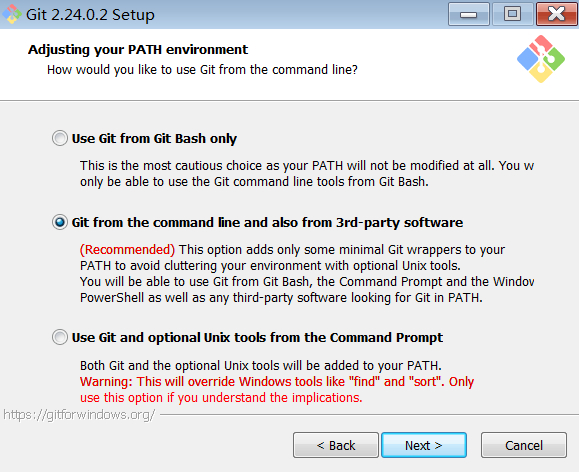
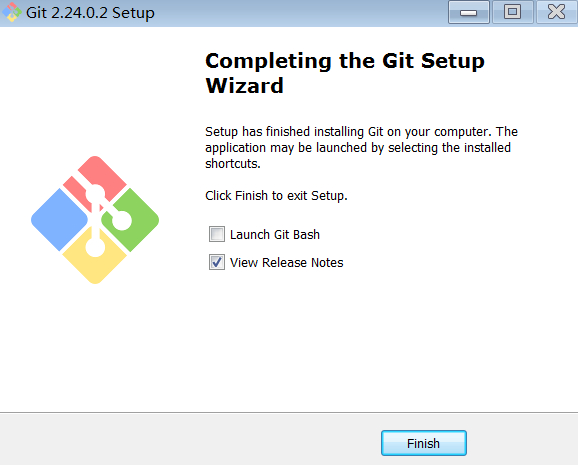
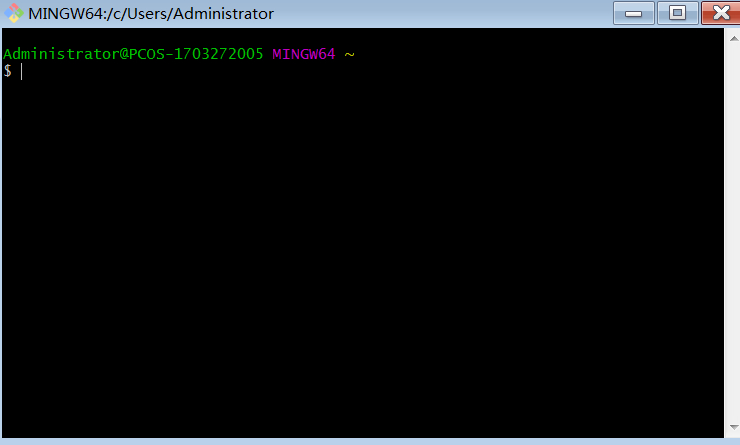
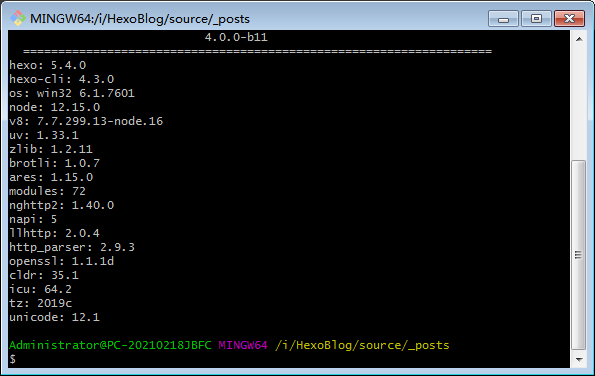
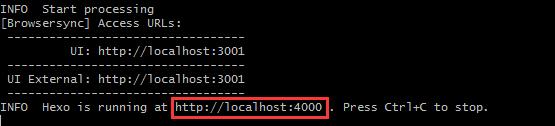
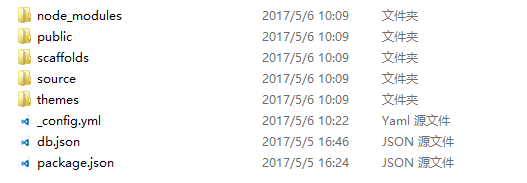
    <content type="html"><![CDATA[<link rel="stylesheet" class="aplayer-secondary-style-marker" href="\assets\css\APlayer.min.css"><script src="\assets\js\APlayer.min.js" class="aplayer-secondary-script-marker"></script><link rel="stylesheet" type="text/css" href="https://cdn.jsdelivr.net/hint.css/2.4.1/hint.min.css"><h1 id="Hexo-Github搭建个人博客学习笔记"><a href="#Hexo-Github搭建个人博客学习笔记" class="headerlink" title="Hexo+Github搭建个人博客学习笔记"></a>Hexo+Github搭建个人博客学习笔记</h1><h2 id="Hexo简介"><a href="#Hexo简介" class="headerlink" title="Hexo简介"></a>Hexo简介</h2><p>Hexo是一款基于<code>Node.js</code>的静态博客框架，依赖少易于安装使用，可以方便的生成静态网页托管再<code>Github</code>和<code>Coding</code>上，是搭建博客的首选框架。</p><div class="tag link"><a class="link-card" title="Hexo（官网）" href="https://hexo.io/zh-cn/"><div class="left"><img src="https://inews.gtimg.com/newsapp_ls/0/14536421850/0.png"/></div><div class="right"><p class="text">Hexo（官网）</p><p class="url">https://hexo.io/zh-cn/</p></div></a></div><h2 id="Hexo搭建步骤"><a href="#Hexo搭建步骤" class="headerlink" title="Hexo搭建步骤"></a>Hexo搭建步骤</h2><blockquote><ol><li>安装Node.js</li><li>安装Git</li><li>安装Hexo</li><li>创建GitHub个人仓库</li><li>生成SSH添加到GitHub</li><li>将Hexo部署到GitHub</li><li>设置个人域名</li><li>发布文章</li></ol></blockquote><h2 id="安装Node-js"><a href="#安装Node-js" class="headerlink" title="安装Node.js"></a>安装Node.js</h2><p>Hexo是基于<code>Node.js</code>编写的，所以需要安装<code>node.js</code>和里面的<code>npm</code>工具.<br><div class="tag link"><a class="link-card" title="Node.js官网" href="https://nodejs.org/en/download/"><div class="left"><img src="https://inews.gtimg.com/newsapp_ls/0/14563849435/0.jpg"/></div><div class="right"><p class="text">Node.js官网</p><p class="url">https://nodejs.org/en/download/</p></div></a></div></p><p><img src="https://inews.gtimg.com/newsapp_ls/0/14291106803/0.png"  style="zoom: 50%;" /></p><p>下载好安装包后，正常安装即可，一般都是点击<code>Next</code>,除了修改安装目录外;</p><p><img src="https://inews.gtimg.com/newsapp_ls/0/14294985251/0.png" alt=""></p><p><img src="https://inews.gtimg.com/newsapp_ls/0/14294986238/0.png" alt=""></p><p>安装完成，测试安装是否成功，<code>Win+R</code>，输入<code>cmd</code>，分别输入<code>node -v</code> 和<code>npm -v</code>分别查看<code>node</code>和<code>npm</code>的版本号，如下图所示：</p><p><img src="https://inews.gtimg.com/newsapp_ls/0/14291137068/0.png" alt=""></p><hr><h2 id="安装Git"><a href="#安装Git" class="headerlink" title="安装Git"></a>安装Git</h2><p><strong>Git</strong>是目前世界上最先进的分布式版本控制系统，可以有效、高速的处理从很小到非常大的项目版本管理。也就是用来管理你的<code>hexo</code>博客文章，上传到<code>GitHub</code>的工具。<br><a href="https://www.cnblogs.com/xueweisuoyong/p/11914045.html">Windows系统Git安装教程（详解Git安装过程） - 学为所用 - 博客园</a></p><p><a href="https://git-scm.com/">Git (git-scm.com)</a></p><p><img src="https://inews.gtimg.com/newsapp_ls/0/14291191385/0.png" alt="image.png" style="zoom: 67%;" /></p><p>下载好安装包后，点<code>Next</code>到选择安装组件 </p><p><img src="https://inews.gtimg.com/newsapp_ls/0/14294988619/0.png" alt=""></p><p>上图红框内的选项是默认勾选的，建议不要动。绿色框1是决定是否在桌面创建快捷方式的。绿色框2是决定在所有控制台窗口中使用<code>TrueType</code>字体和是否每天检查<code>Git</code>是否有<code>Windows</code>更新的。这些根据自己需要选择。</p><p>然后一直点<code>Next</code> ,到调整<code>PATH</code>环境时，选择第二种配置。</p><p><img src="https://inews.gtimg.com/newsapp_ls/0/14296393095/0.png" alt=""></p><p>这个界面是调整您的PATH环境。</p><p>  第一种配置是“仅从<code>Git Bash</code>使用<code>Git</code>”。这是最安全的选择，因为您的<code>PATH</code>根本不会被修改。您只能使用 <code>Git Bash</code> 的 <code>Git</code> 命令行工具。但是这将不能通过第三方软件使用。</p><p>  第二种配置是“从命令行以及第三方软件进行<code>Git</code>”。该选项被认为是安全的，因为它仅向<code>PATH</code>添加了一些最小的<code>Git</code>包装器，以避免使用可选的<code>Unix</code>工具造成环境混乱。<br>您将能够从<code>Git Bash</code>，命令提示符和<code>Windows PowerShell</code>以及在<code>PATH</code>中寻找Git的任何第三方软件中使用<code>Git</code>。这也是推荐的选项。</p><p>  第三种配置是“从命令提示符使用<code>Git</code>和可选的<code>Unix</code>工具”。警告：这将覆盖<code>Windows</code>工具，如 “ <code>find</code> 和<code>sort</code> ”。只有在了解其含义后才使用此选项。</p><p><code>然后最后其实都可以一直选择默认了，直到安装成功。</code></p><p><img src="https://inews.gtimg.com/newsapp_ls/0/14297084226/0.png" alt=""></p><p>安装完成，启动测试，在空白处点击右键菜单会出现两个选项，<code>Git GUI</code> <code>Git Bash</code> ,点击<code>Git Bash</code> 查看是否出现如下图所示：</p><p><img src="https://inews.gtimg.com/newsapp_ls/0/14297099014/0.png" alt=""></p><hr><h2 id="配置npm"><a href="#配置npm" class="headerlink" title="配置npm"></a>配置npm</h2><ul><li><code>npm</code>默认的源的下载速度可能很慢，建议使用淘宝镜像替换。</li><li>执行下面的命令，将<code>npm</code>的源设置成淘宝镜像站。</li></ul><figure class="highlight plaintext"><table><tr><td class="gutter"><pre><span class="line">1</span><br></pre></td><td class="code"><pre><span class="line">npm config set registry &quot;https://registry.npm.taobao.org&quot;</span><br></pre></td></tr></table></figure><hr><h2 id="安装Hexo"><a href="#安装Hexo" class="headerlink" title="安装Hexo"></a>安装Hexo</h2><p><code>Git</code>和<code>node.js</code>安装好之后，就可以安装<code>Hexo</code>了，在任何位置点击右键，打卡<code>GIt Bash</code>。<br><div class="tag link"><a class="link-card" title="Hexo 中文文档" href="https://hexo.bootcss.com/docs/"><div class="left"><img src="https://inews.gtimg.com/newsapp_ls/0/14412388949/0.png"/></div><div class="right"><p class="text">Hexo 中文文档</p><p class="url">https://hexo.bootcss.com/docs/</p></div></a></div><br>输入以下命令安装hexo和hexo服务器模块：</p><p><code>npm install -g hexo-cli</code></p><p><code>npm install hexo-server --save</code></p><p>查看是否安装成功：</p><p><code>hexo -v</code></p><p><img src="https://inews.gtimg.com/newsapp_ls/0/14297144877/0.png" alt=""></p><p>至此就全部安装完成了。</p><p>接下来初始化博客文件夹，再D盘或者其他地方新建一个文件夹Blog，然后再这个文件夹里打开cmd（或者在这个文件夹下直接右键Git hash打开:</p><p><code>hexo init myblog</code></p><p>ps：这里的<code>myblog</code> 可以起任意名字，也就是你想的博客名字</p><p>测试Hexo 是否安装成功：</p><p><code>hexo g</code><br><code>hexo s</code><br><img src="https://inews.gtimg.com/newsapp_ls/0/14297417321/0.png" alt=""></p><p>出现 <code>http://localhost:4000</code> 就说明已经安装部署好啦，下一步就是<code>DIY Hexo</code>，安装自己喜欢的主题，美化主题。发布部署到<code>Github</code>中，就可以访问你的博客啦。</p><p>新建完成后，指定文件夹目录下有：</p><p><img src="https://inews.gtimg.com/newsapp_ls/0/14297445467/0.png" alt=""></p><p><div class="share-component" data-sites="facebook,twitter,weibo,wechat,qq,douban" data-wechat-qrcode-title="微信分享" data-wechat-qrcode-helper="<p>微信扫一扫，分享本篇给朋友</p>" ></div></p><p><link rel="stylesheet" href="https://cdn.jsdelivr.net/npm/social-share.js/dist/css/share.min.css" media="all" onload="this.media='all'"></p><script src="https://cdn.jsdelivr.net/npm/social-share.js/dist/js/social-share.min.js" defer=""></script><ul><li><code>node_modules</code>：是依赖包</li><li><code>public</code>：存放的是生成的页面</li><li><code>scaffolds</code>：命令生成文章等的模板</li><li><code>source</code>：用命令创建的各种文章</li><li><code>themes</code>：主题</li><li><code>_config.yml</code>：整个博客的配置</li><li><code>db.json：source</code>解析所得到的</li><li><code>package.json</code>：项目所需模块项目的配置信息</li></ul><hr>]]></content>
    
    
    <summary type="html">Hexo是一款基于Node.js的静态博客框架，依赖少易于安装使用，是搭建博客的首选框架。</summary>


    <category term="Hexo" scheme="http://curedew.github.io/categories/Hexo/"/>
    
    
    <category term="Hexo" scheme="http://curedew.github.io/tags/Hexo/"/>
    
  </entry>
  
</feed>